[TOC]
Kantata Dashboard Configuration Guide for GitLab Professional Services
Overview
This guide will help you set up a powerful at-a-glance project portfolio dashboard in Kantata that displays the most critical project information for effective management and reporting.
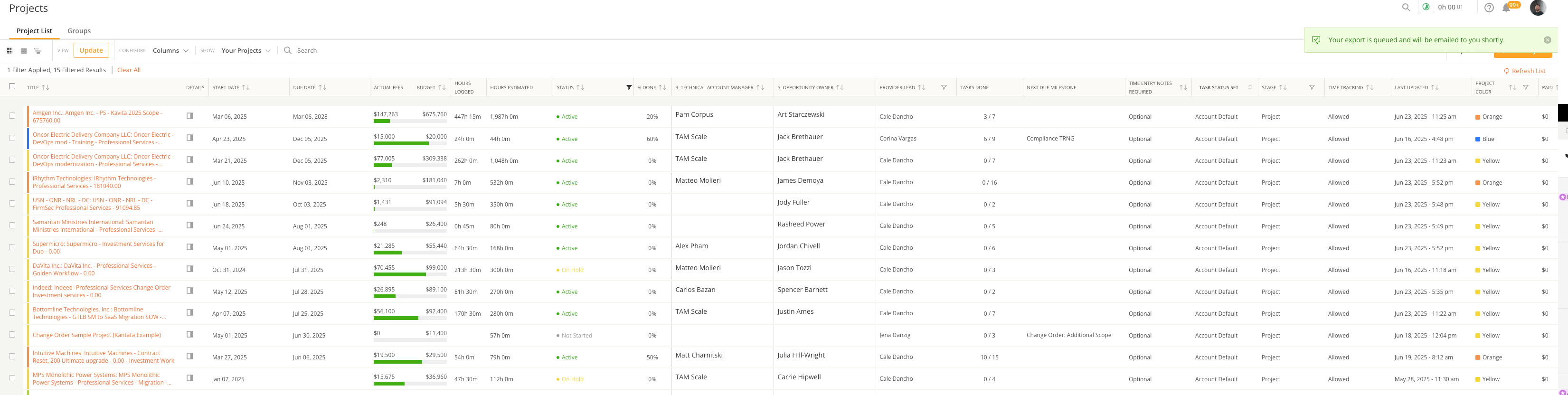
Accessing the Dashboard Configuration
- Log into Kantata
- Click on Projects in the main navigation
- From the "Show" dropdown menu, select Your Projects
- Click the Configure button (usually represented by a gear icon)
Selecting and Ordering Columns
Select the following columns in this specific order for optimal visibility of critical project information:
- Start Date
- Due Date
- Budget Burn
- Hours Logged
- Hours Estimated
- Hours Approved
- Status
- % Done
- Technical Account Manager
- Opportunity Owner
- Provider Lead
- Tasks Done
- Next Due Milestone
- Time Entry Notes Required
- Task Status Set
- Stage
- Time Tracking
- Last Updated
- Project Color
- Paid
Save this configuration as your default view for quick access
Kantana Hours Compare Report Quick Guide
What Is It?
A report showing week-by-week comparison of actual vs. allocated hours against capacity. Helps track resources and monitor project progress.
Key Information
- Purpose: Compare actual hours worked vs. forecasted hours for all project contributors
- Main View: Weekly breakdown of hours (actual, allocated, capacity)
- Billable Analysis: Use "Billable Project Default" and "Billable Actuals Only" filters together for billable-specific comparisons
- Results: Reflect your specific project execution approach
How To Use
- Review weekly to spot resource utilization issues
- Identify over/under-allocated team members
- Compare billable allocated hours vs. actual billable hours
- Make resource adjustments based on findings
Benefits
- Holistic view of all contributors' hours
- Early warning for project overruns
- Better capacity planning
- Improved resource allocation
Active and Completed Project Report Guide
Purpose
This report is used for understanding which projects are in progress and completed by project leads (PMs). It's particularly helpful when closing out the month/quarter to ensure internal retrospective data is collected and populated.
Who Should Use This Guide
- Project Managers (PMs)
- Managers
- Anyone responsible for project oversight and quarterly/monthly closures
Step-by-Step Instructions
-
Access the Report Navigate to the Month End Reporting-Free Services Report in Kantata
-
Set Date Range
- Choose your desired date range for the reporting period
- Consider aligning with your monthly or quarterly closure timeline
- PS Type
- Select all
- PS Category
- Select all (filter out Edu Services if needed)
- User Type
- Select all
- Filter by Project Lead
- Filter by Project Lead = PM Assigned to review only your assigned projects
- Managers can filter by specific team members or leave unfiltered to see all projects
- Configure Project Status Filters Uncheck the following Project Status options:
- Cancelled
- Estimate
- Prospect
- Backlog
- NA
Keep checked:
- Active
- At Risk
- Blocked
- Cancelled
- Closed
- Completed
- In Setup
- Not Started
- Okay to Start
- On Hold
- Configure Free Services Filter
- Select all
- Opp Owner & SA
- Select all
- Project Components
- Select all (filter out Edu Services if needed)
- Generate and Review
- Run the report to see all relevant started, Due, and Completed projects within the date filter
- Use this data for retrospective analysis and internal data collection
Best Practices
- Run this report regularly during month-end and quarter-end processes
- Ensure all project data is up-to-date before generating the report (start/end date, kickoff date, updated project status)
- Use the results to verify project completion status and gather insights for retrospectives within the internal retro issue
- Coordinate with your Project Coordinator (PC) if you have any questions around project closure activities